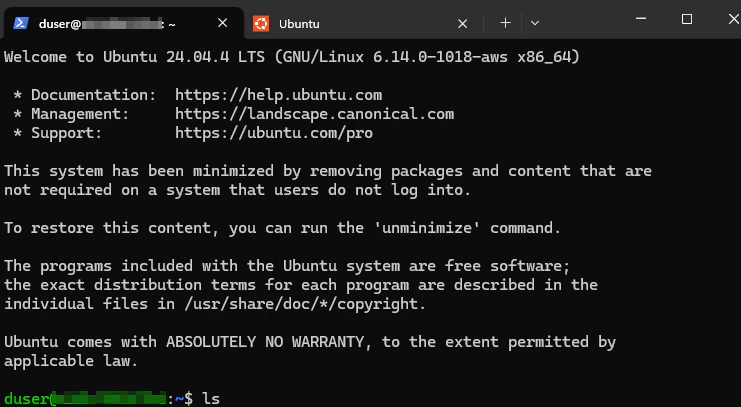
Ubuntu with SSH
This requires an SSH key pair (public and private keys). If you don’t have SSH keys yet, you can easily generate a dedicated key pair for Dispersed. For Windows-based system under versions 10 and 11, use the built-in OpenSSH client via PowerShell or Command Prompt.
The command below uses the recommended Ed25519 algorithm:
This creates a separate key pair that won’t affect any of your existing SSH keys. Your public key is at ~/.ssh/dispersed.pub. To view your public key:
- Open File Explorer and navigate to your
.ssh folder (typically C:\Users\YourName\.ssh).
- Right-click the
.pub file.
- Select Open with > Choose another app.
- Select Notepad to avoid formatted text that may add hidden characters or page breaks that will cause your key to break
Quick Start Steps
- Sign in to the Dispersed Console
- Navigate to Run in the sidebar
- In the Recipe section select the
ubuntu:24.04 Job Recipe which is recommended for this quick start
- In the GPU section, choose the gpu that fits your budget and needs
- In the configuration modal, provide the required inputs:
- Click
Submit. You’ll be redirected to the Job Detail page and you’ll need to wait for Node Assignment as your job goes through the stages below. Once a Node is assigned, a Job Run is automatically created. This may take a few seconds to a few minutes depending on network availability.
- When your Job shows RUNNING, find the Job Runs section and click on the Job Run to open the Get the connection information through the Job Run Detail page. The connection information should appear under Node URLs. Note down the
hostname and port needed for SSH access.
- Use the connection information from step 7 to connect to Dispersed:
The Job Run page updates automatically as status changes. Refresh if needed to see the latest connection information.
The Ubuntu with SSH recipe creates a PERSISTENT job that runs until you stop it. Remember to stop your job when finished to avoid continued billing.
Stopping Your Job
Ensure to avoid continued billing by stopping your job when finished.
- Navigate to Jobs in the Console
- Click on your Job to view details
- Click Stop (for running jobs) or Cancel (for pending jobs)
Troubleshooting
Using the API
For programmatic access to Job Recipes, you’ll need an API Key and HMAC signature authentication. See Authenticate API Requests for implementation details and code examples.