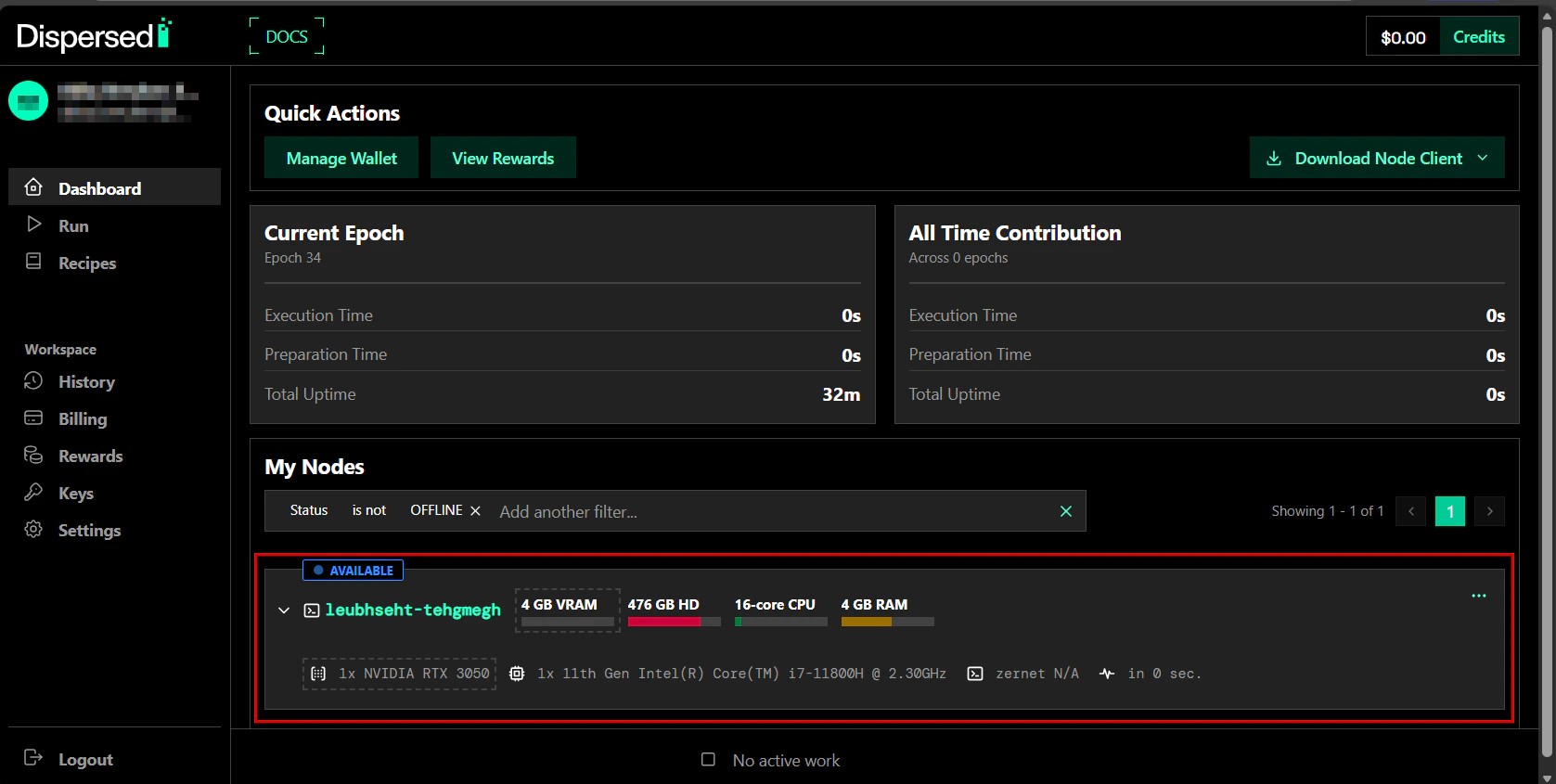
The Dispersed client is a zero-trust client. Jobs can access anything your computer can access over the network or disk. We strongly recommend using an isolated network or DMZ.
Prerequisites
Supported Systems
The Dispersed client is built and tested on Ubuntu 22.04 and Ubuntu 24.04. Other Linux distributions may work but are not officially supported.1. Verify NVIDIA GPU Drivers
Ensure your NVIDIA GPU drivers are installed:If the command fails, install drivers from NVIDIA Drivers.Check that CUDA is installed:If not installed, follow the NVIDIA CUDA Toolkit installation guide.3. Install Docker
3.1 Add Docker’s GPG key:curl -fsSL https://download.docker.com/linux/ubuntu/gpg | sudo gpg --dearmor -o /etc/apt/keyrings/docker.gpg
3.2 Set permissions:sudo chmod a+r /etc/apt/keyrings/docker.gpg
3.3 Add Docker repository:echo "deb [arch=$(dpkg --print-architecture) signed-by=/etc/apt/keyrings/docker.gpg] https://download.docker.com/linux/ubuntu $(. /etc/os-release && echo "$VERSION_CODENAME") stable" | sudo tee /etc/apt/sources.list.d/docker.list > /dev/null
3.4 Update and install:sudo apt-get update
sudo apt-get install -y docker-ce docker-ce-cli containerd.io docker-buildx-plugin docker-compose-plugin
4.1 Add NVIDIA repository:curl -fsSL https://nvidia.github.io/libnvidia-container/gpgkey | sudo gpg --dearmor -o /usr/share/keyrings/nvidia-container-toolkit-keyring.gpg
curl -s -L https://nvidia.github.io/libnvidia-container/stable/deb/nvidia-container-toolkit.list | \
sed 's#deb https://#deb [signed-by=/usr/share/keyrings/nvidia-container-toolkit-keyring.gpg] https://#g' | \
sudo tee /etc/apt/sources.list.d/nvidia-container-toolkit.list
4.2 Update and install:sudo apt-get update
sudo apt-get install -y nvidia-container-toolkit
4.3 Configure runtime:sudo nvidia-ctk runtime configure --runtime=docker
sudo systemctl restart docker
sudo nvidia-ctk runtime configure --runtime=containerd
sudo systemctl restart containerd
5. Verify Container GPU Access
sudo docker run --rm --runtime=nvidia --gpus all ubuntu nvidia-smi
You should see your GPU information displayed.6. Install OpenGL Libraries (Recommended)
For rendering workloads, install the OpenGL libraries matching your driver version:6.1 Check available versions:apt-cache search --names-only "libnvidia-gl*"
6.2 Install (replace 550 with your driver version):sudo apt-get install -y libnvidia-gl-550
Windows WSL is not officially supported. The steps below may work but are provided as-is without guarantees.
1. Install WSL with Ubuntu
Open PowerShell as Administrator:Follow the prompts to complete installation and create a user.2. Verify GPU Access in WSL
Inside your WSL Ubuntu terminal:If this fails, see the CUDA on WSL User Guide.Follow the same Docker and NVIDIA Container Toolkit installation steps as Linux above, running all commands inside your WSL Ubuntu terminal.4. Verify Container GPU Access
sudo docker run --rm --runtime=nvidia --gpus all ubuntu nvidia-smi
Register Your Node
Once prerequisites are installed, register your machine with the network.
1. Download dispersed
Download the dispersed client from the Console or contact support for access.
2. Run Registration
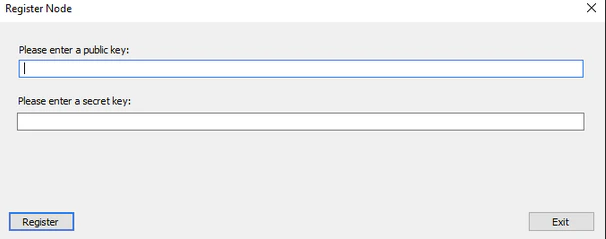
Navigate to the directory with the dispersed client binary and register using your API Key:
2.1 Find the dispersed client binary:
cd /path/to/folder/with/dispersed
2.2 Register (first time only):
./disNet --register --pubkey pk_your_public_key --secretkey sk_your_secret_key
Expected output:
Registration successful. Node UUID: xxxxxxxx-xxxx-xxxx-xxxx-xxxxxxxxxxxx
3. Start dispersed
After registration, start the client normally:
./disNet --pubkey pk_your_public_key --secretkey sk_your_secret_key
You only need the --register flag on first run. After that, just use --pubkey and --secretkey.

Configuration Options
Disk Quota
Limit Docker image storage with the --quota flag (in GB):
./disNet --pubkey pk_xxx --secretkey sk_xxx --quota 250
Recommendation: Set quota to ~50% of your Docker data root drive capacity. Default is 400GB.
Find your Docker data root:
sudo docker info -f '{{ .DockerRootDir}}'
Run as a Service (Recommended)
For production operations, it can be helpful to run dispersed as a systemd service for automatic restarts.
1. Create Service File
sudo nano /etc/systemd/system/dispersed.service
Add the following (replace paths and keys in WorkingDirectory and ExecStart fields):
[Unit]
Description=Dispersed Node Client
After=network.target docker.service
Requires=docker.service
[Service]
Type=simple
User=root
WorkingDirectory=/path/to/dispersed
ExecStart=/path/to/dispersed/disNet --pubkey pk_your_public_key --secretkey sk_your_secret_key
Restart=always
RestartSec=10
StandardOutput=append:/var/log/dispersed.log
StandardError=append:/var/log/dispersed.log
[Install]
WantedBy=multi-user.target
2. Enable and Start
sudo systemctl daemon-reload
sudo systemctl enable dispersed
sudo systemctl start dispersed
3. Check Status
sudo systemctl status dispersed
4. Check Logs
sudo tail -f /var/log/dispersed.log
Troubleshooting
| Issue | Solution |
|---|
nvidia-smi not found | Install NVIDIA drivers |
| Docker permission denied | Run with sudo or add user to docker group |
| Container can’t access GPU | Verify nvidia-container-toolkit installation |
| Node not appearing in Console | Check network connectivity and API key validity |
See Troubleshooting for more common issues.